STEP ONE: Pause Your Antivirus Software
If you have any antivirus software (Norton, TotalAV, Guardio, Avast, AVG, Aura, Bitdefender, Surfshark, Avira, etc.) on your computer, pause it so that you can fully download the zip file in the next step. If you do not know how to pause your antivirus, do a google search on how to pause for your software. Note: some antivirus software allows you to download zip files, but many don’t.
STEP TWO: Install Mingw
Go to https://winlibs.com. Then, scroll down until you see the Release versions and then choose the LATEST version, which should be at the top (GCC 15.1.0 as of 6/5/2025). I recommend choosing to download the Zip archive for Win64, which is highlighted below. Note: the LATEST version may be different from the time that I made this document.
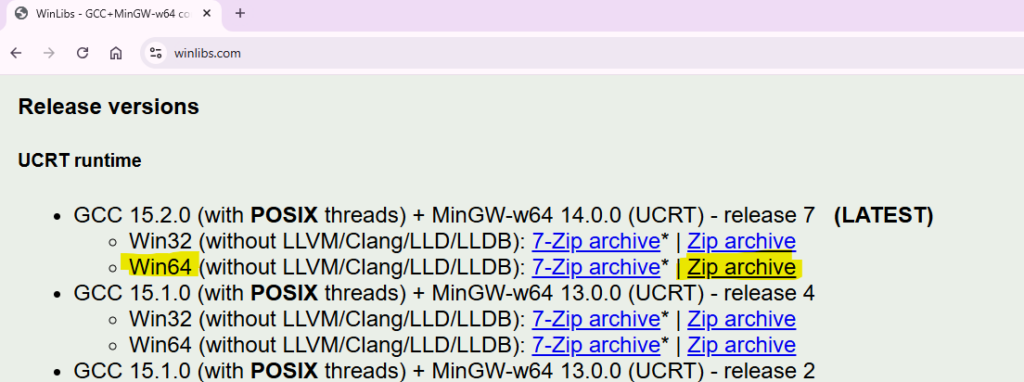
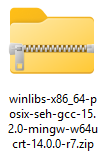
The .zip file will be downloaded. It will have a ginormous name that will begin with winlibs-x86_64-posix-seh-gcc-15 and will end with .zip
STEP THREE: Extract the Zip File
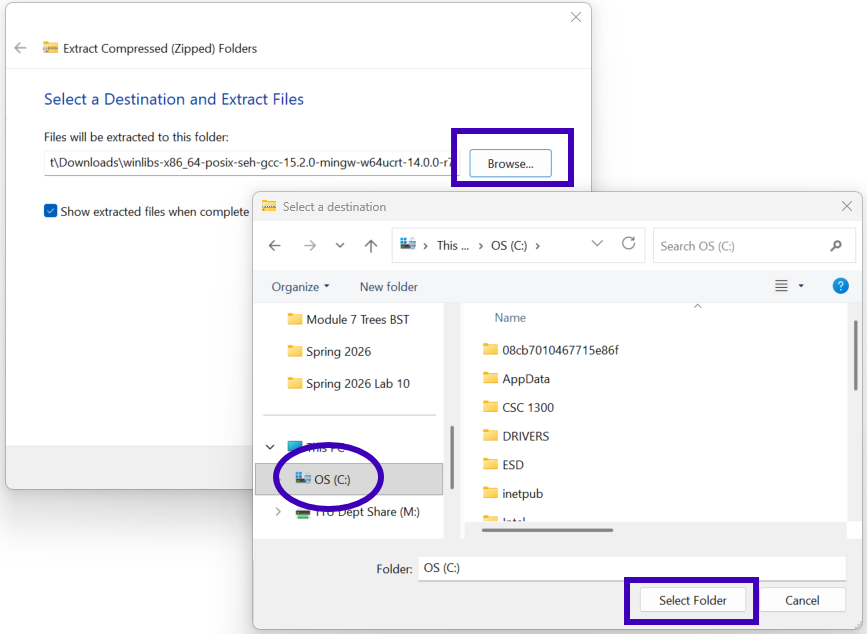
Right-click and select Extract All. Click Browse to select your C: drive and then click the Select Folder button.
Click the Extract button. This will take several minutes (depending on your internet connection and speed of your computer) because over 11,000 items will be extracted.
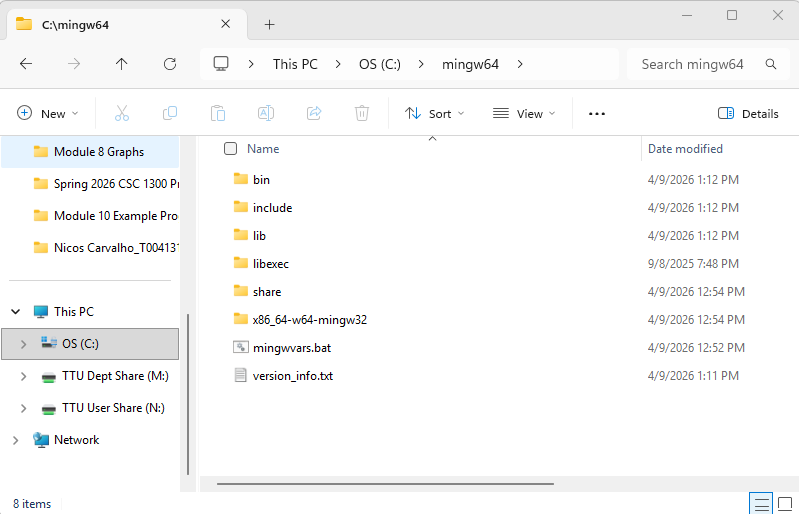
After it has completed, you will have a MinGW folder in the C: drive that looks like the screen capture below.
STEP FOUR: Set up a System Environment Variable to MinGW
Below are the steps to add the path to your mingw64 bin folder to the Windows PATH environment variable.
- Go to your File Explorer and go to This PC and then C: drive and then mingw64 and then bin. Then, click in the white space beside the file directory to highlight the path.
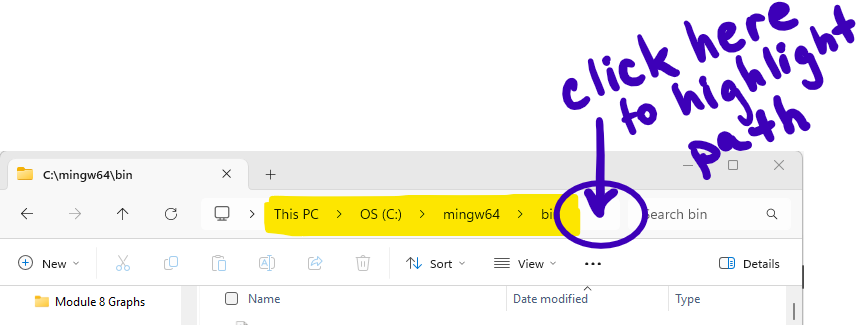
- Hit CTRL+C to copy the path.
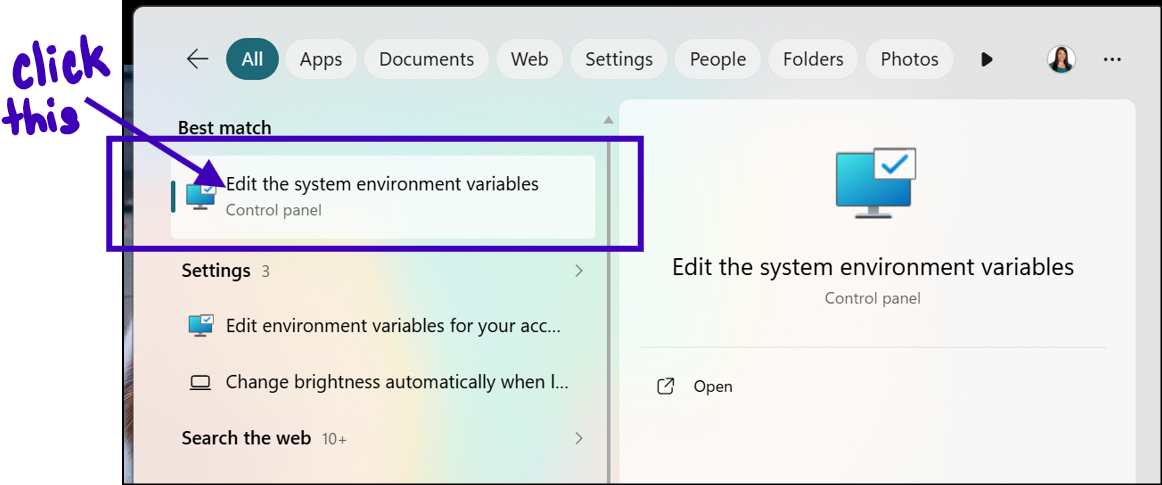
- In the Windows search bar, type ‘environment’ and click on Edit the system environment variables. If this option is not available, you can also select “Edit environment variables for your account” and this will work as well.
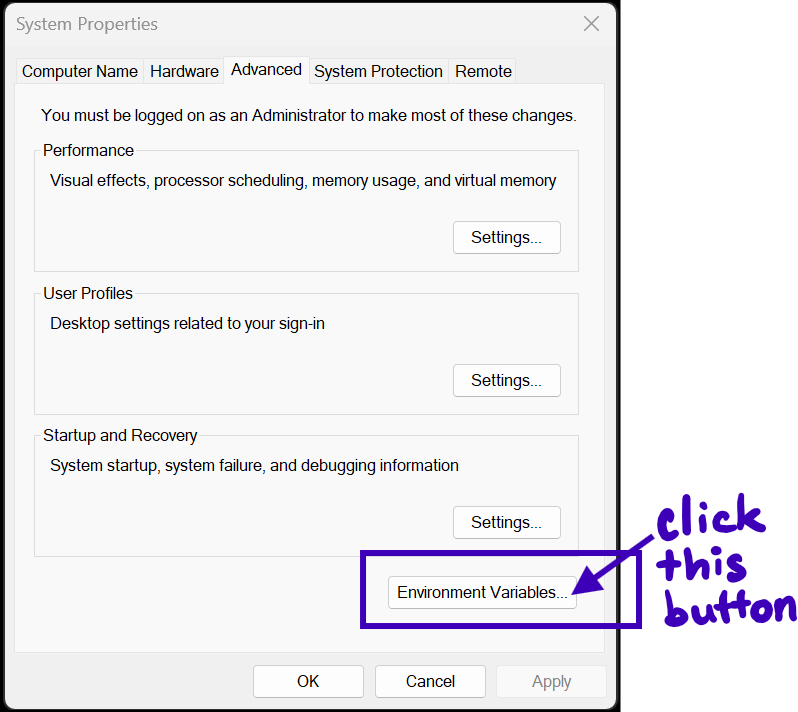
- Click the Environment Variables button.
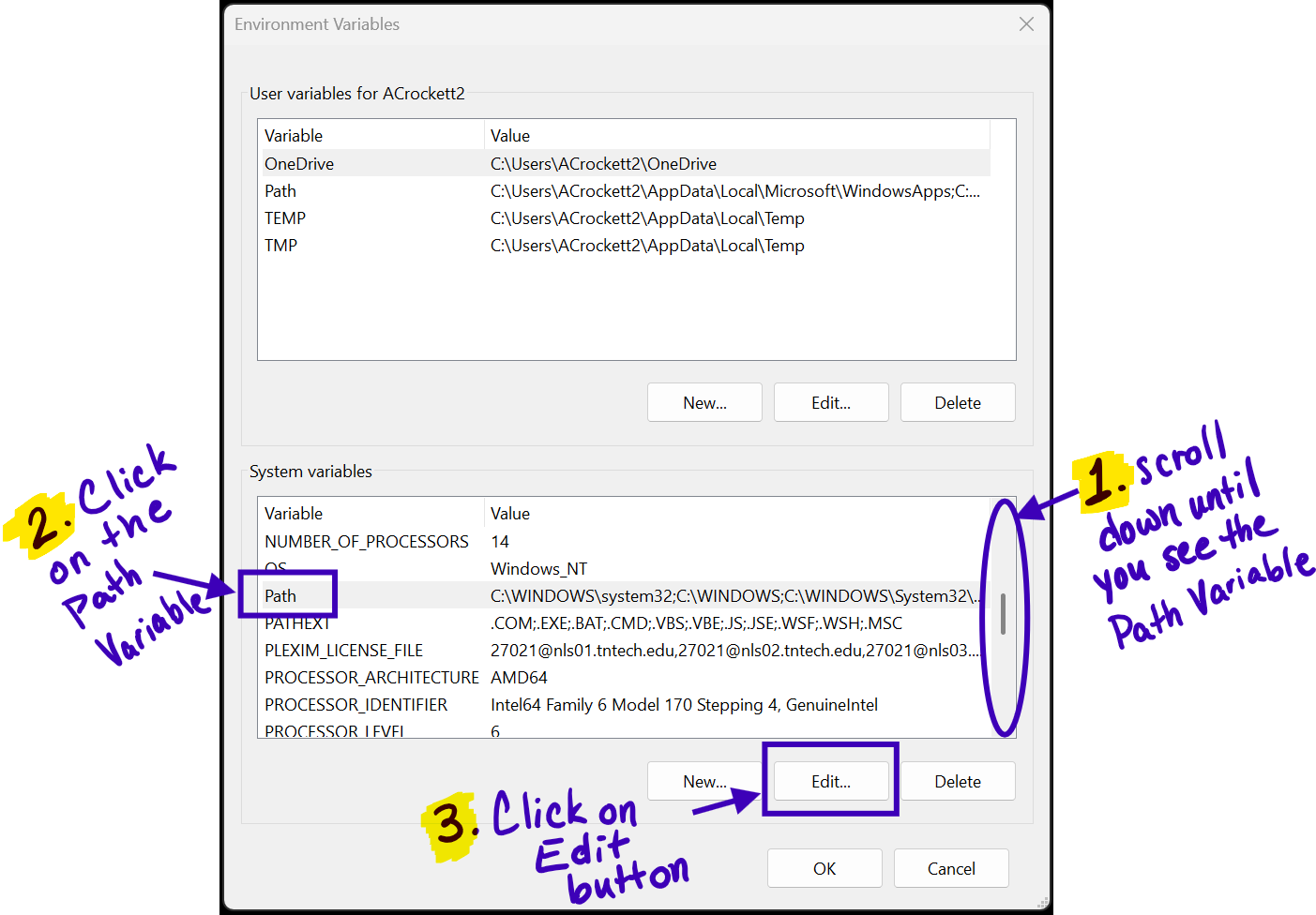
- In the bottom half of the window under System variables, choose the Path variable (either double click or single click and select the Edit button). If you can’t access System variables, try editing the Path variable under the top window that says “User variables for xxx” (where xxx is your user name).
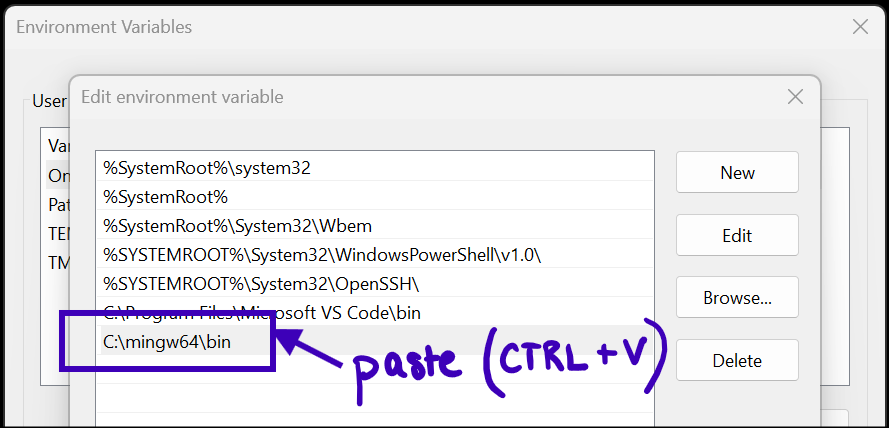
- In the “Edit environment variable” window, select New.
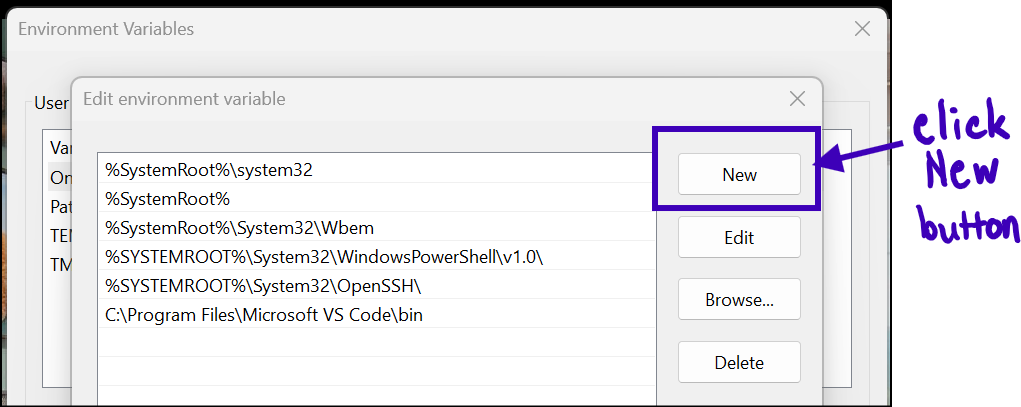
- Paste (CTRL+V) the path that you already copied in the blank space that is now highlighted.
- Click OK to save the Path update.
- Click OK in the Environment Variables window.
- Click OK in the System Properties window.
- If you already have a command prompt window open, you will need to close it and open a new Command Prompt window for the new PATH location to be available.
STEP FIVE: Test That it is Installed
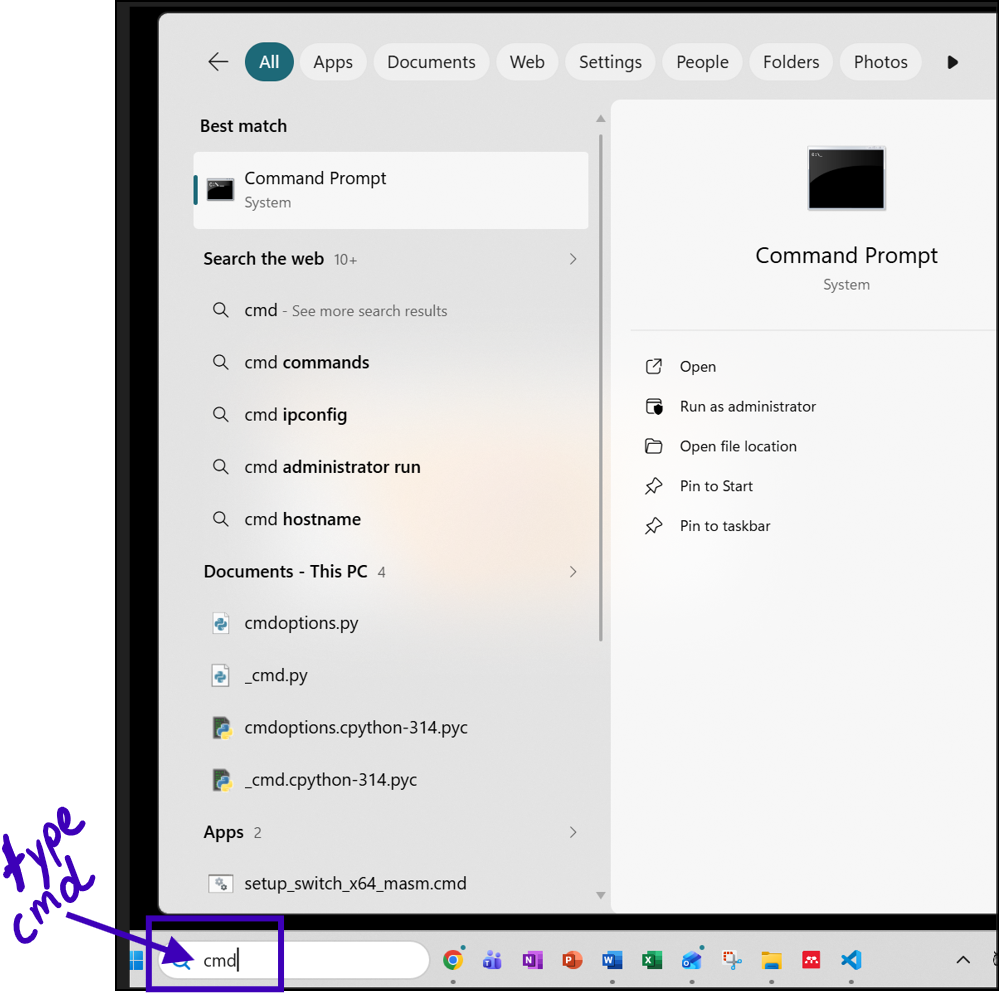
- To test that MinGW is correctly installed you need to open a Command Prompt window. There are multiple ways to do this but the quickest way is to click in your Windows Search bar and type cmd and then hit your Enter key on your keyboard.
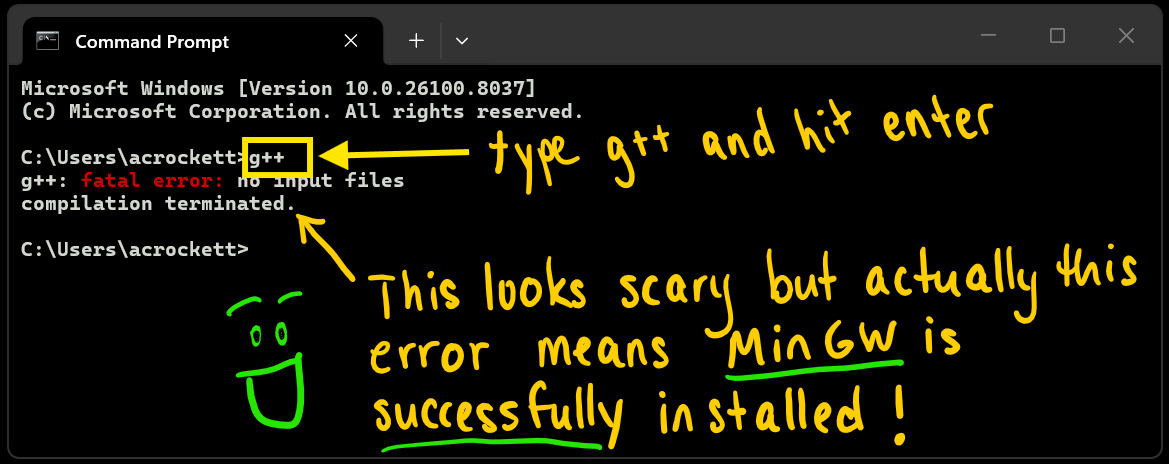
- Then, in the Command Prompt, type g++ and then hit the Enter key on your keyboard.
- If you get a response that says “g++: fatal error: no input files” then this means MinGW is successfully installed and the g++ application is looking for a C++ source file to compile but you didn’t name a file for it to compile.
- If you get a response that says “g++ is not recognized as an internal or external command, operable program or batch file” then MinGW is NOT successfully installed or you didn’t successfully set up your Environment Variable path to the MinGW/bin folder.