Creating a Workspace in VS Code (helloworld example)
- If you do not already have VS Code open, then open it.
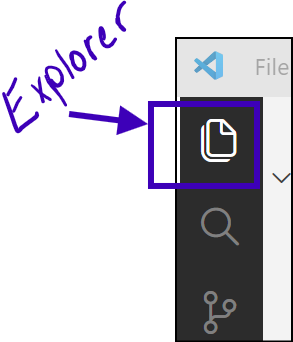
- On the left side menu, click on the Explorer Icon. The Explorer allows you to open folders and create files.
- Click the blue Open Folder button.
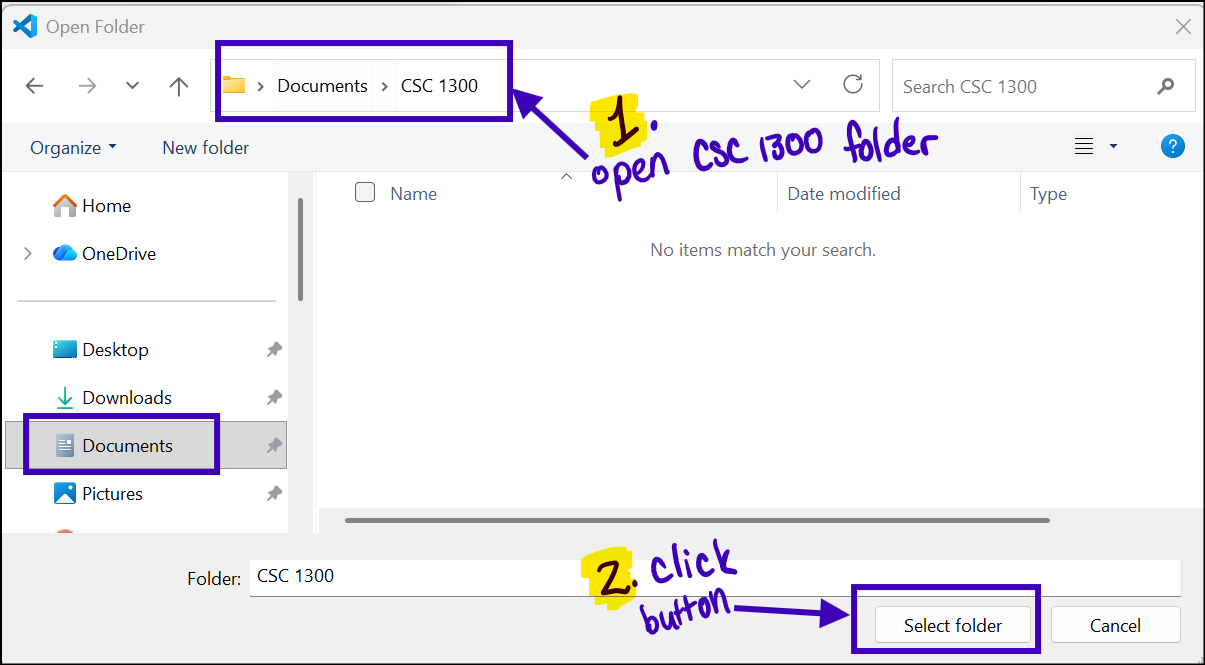
- Navigate in the Open Folder window to where you want to save your programs for this course. I am going to navigate to C:/CSC 1300/ and then click the Select Folder button.
- You may see a “Do you trust the authors of the files in this folder?” message. If you do, click the checkbox beside “Trust the authors of all the files in the parent” and click on the blue button “Yes, I trust the authors“.
- Now that this folder is open in the Explorer window, you can how hover beside the folder name and 4 icons will appear.
- The first icon is New File
- The second icon is New Folder
- The third icon is Refresh Explorer
- The fourth icon is Collapse Folders in Explorer
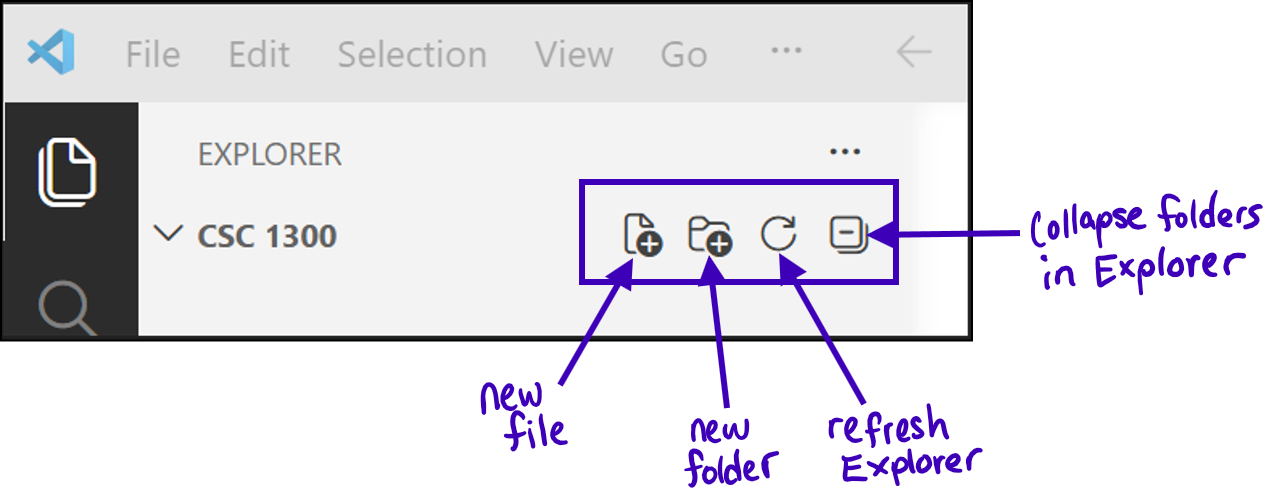
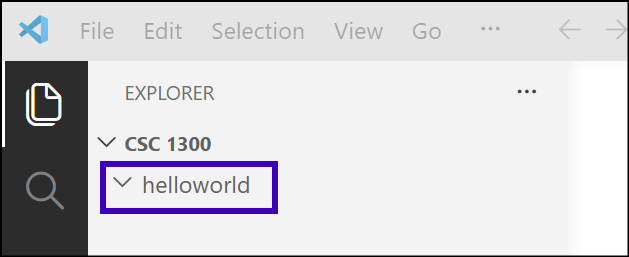
- Click on the New Folder icon to create a new folder in the folder that you opened and name it helloworld.
- Then, click on the helloworld folder, which will cause the arrow beside it to point downward instead of to the right.
Create a Source File (C++ Program)
- Then, click on the New File icon to create a file inside of the helloworld folder and name the file
helloworld.cpp.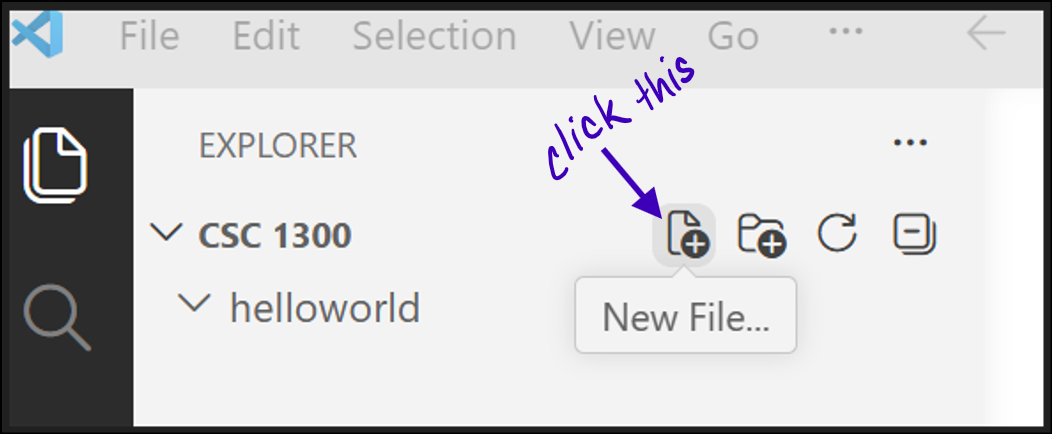
- Type the following lines of code in your newly created helloworld.cpp file.
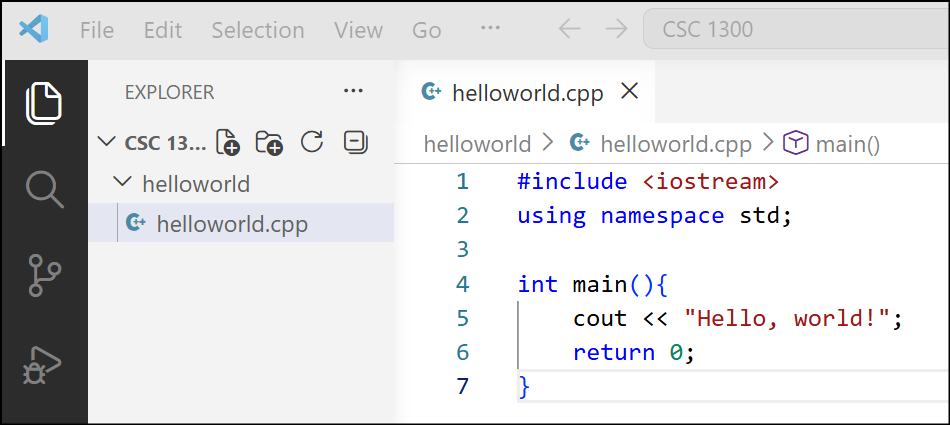
- Now press Ctrl + S to save the file.
You can also alternately click on File and then Save.
Set Up Auto Save
You can enable Auto Save to automatically save your file changes, by clicking on File at the top and then scrolling down to click on Auto Save.
The Activity Bar on the edge of Visual Studio Code lets you open different views such as Search, Source Control, and Run. You can find out more about the other views in the VS Code at the link https://code.visualstudio.com/docs/getstarted/userinterface
Creating a Build Task to be able to Compile & Run helloworld.cpp Within VS Code
- While you are still in VS Code with your helloworld.cpp source file open, click
CTRL + Shift + P
(CMD + Shift + Pon a Mac) on your keyboard, which is used to Create the Build Task. - A menu will appear at the top. Type “Tasks: Configure Task” and select this option that appears.
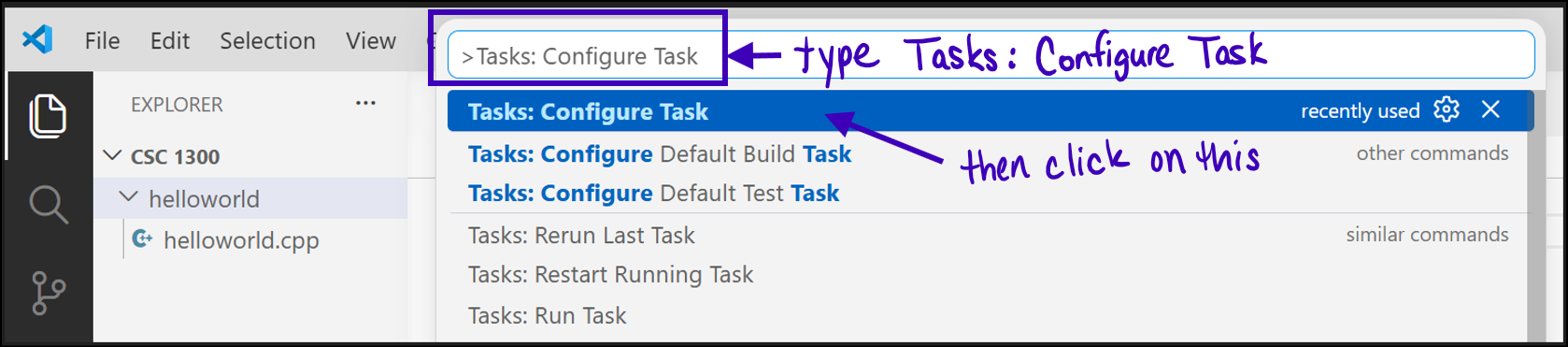
- Under the Select a task to configure menu,
- Windows: choose C/C++: g++.exe build active file from the list of options
- Mac: choose C/C++: clang-cl.exe build active file from the list of options
- VS Code will generate a folder named
.vscodewithin your helloworld directory and atasks.jsonfile within the.vscodefolder. It will also automatically open thetasks.jsonso you can edit it.
Below is an image of the Windows C/C++: g++.exe build file. The clang version is very similar.
Whether you have the g++ or clang file, you will need to make sure the path to your compiler is correct in all places where it is listed.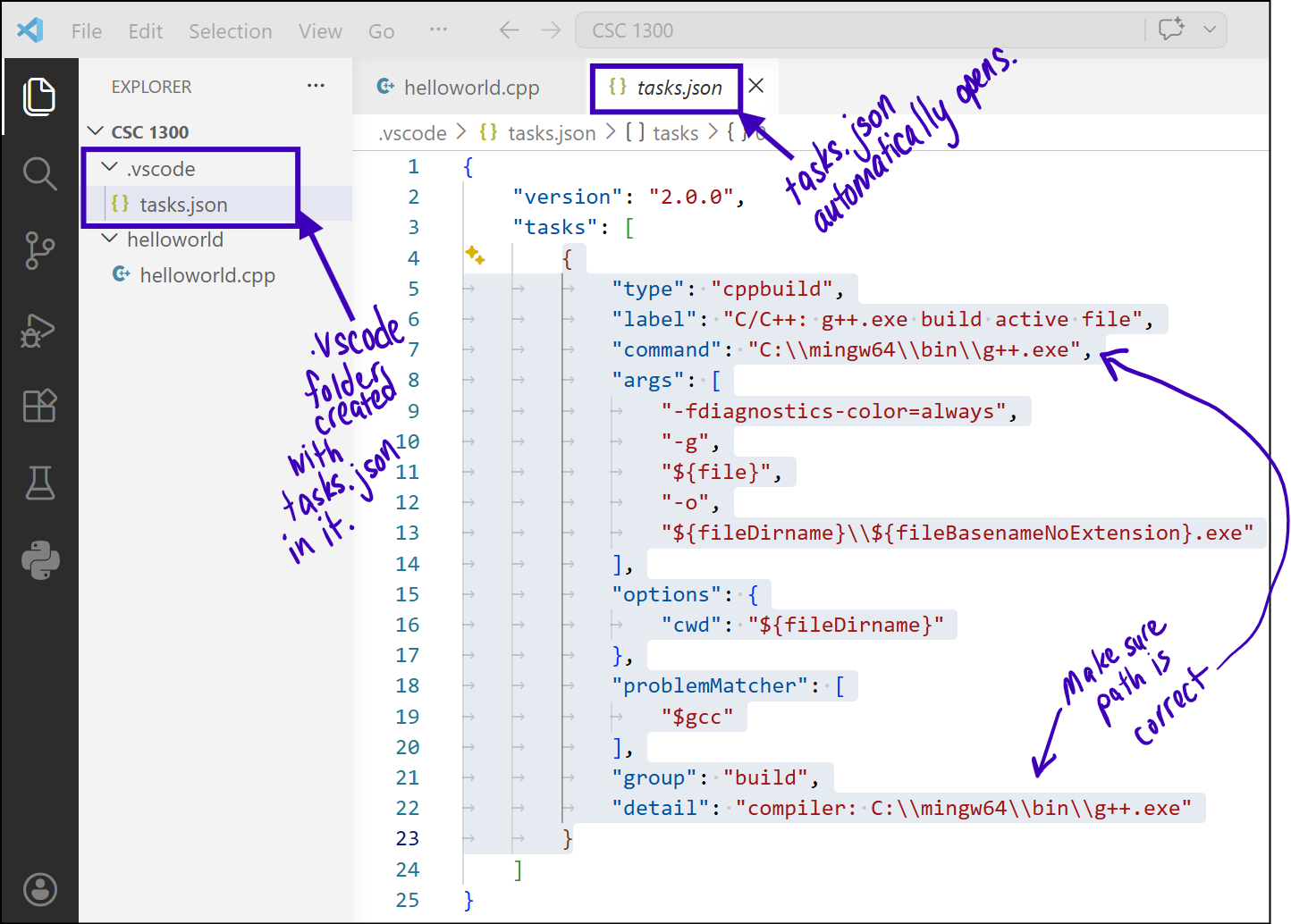
- Modify the compile args (arguments) as shown below:
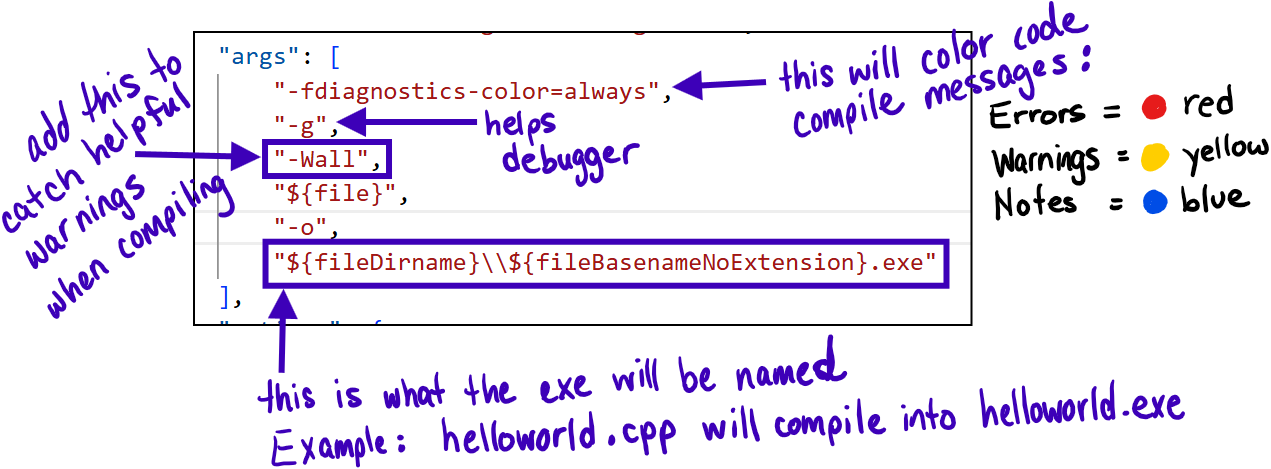
- If your project has more than one source file, then you will need to modify this as shown below.
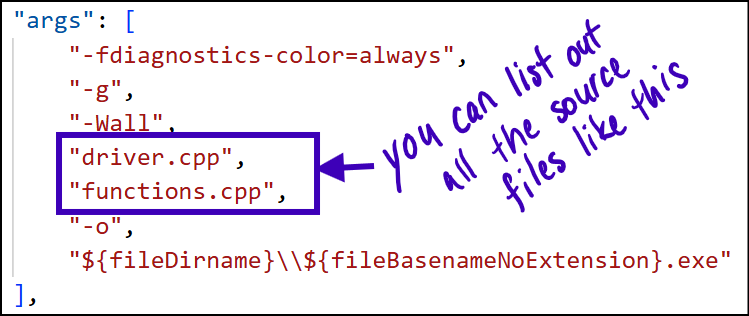
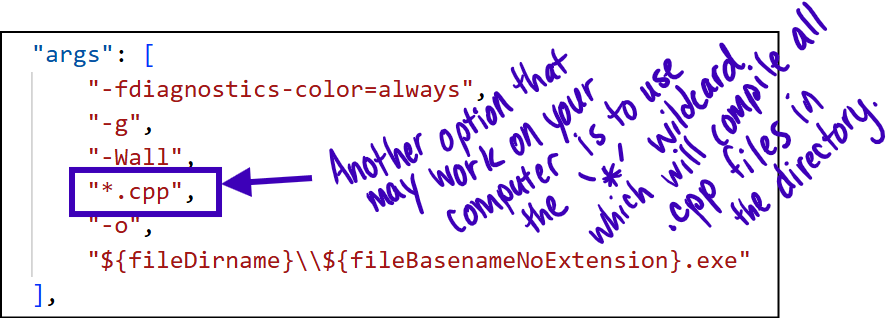
- Open a Terminal so you can compile and run. Click on Terminal and then Run Terminal. If you do not see the Terminal link at the top, click on the three dots and then you will see Terminal.
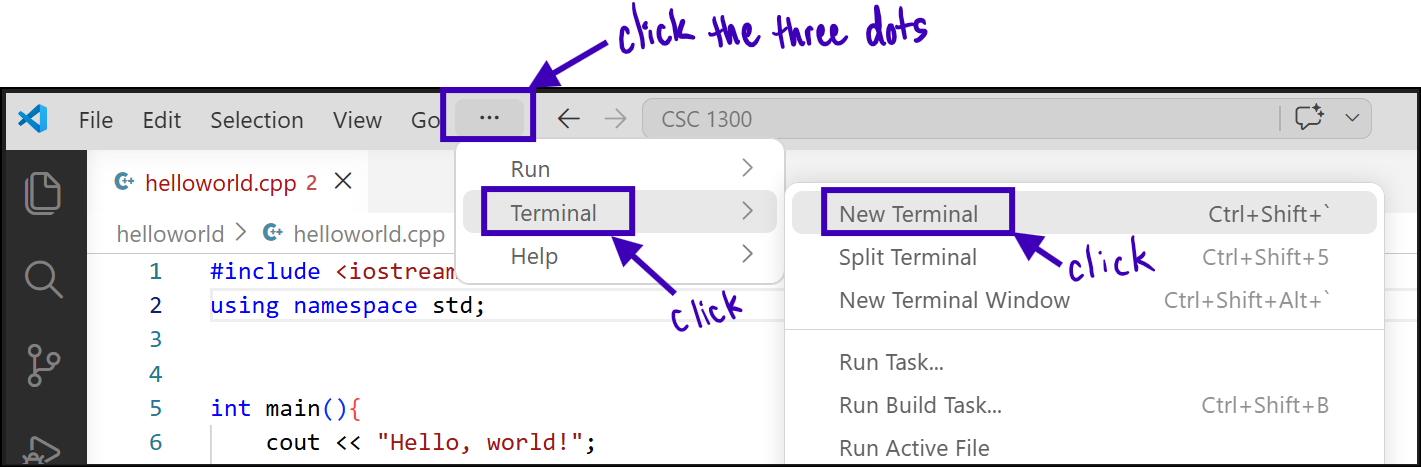
- This will open the terminal.
- Then, build the file by:
- Windows:
- click
CTRL + Shift + B - select C/C++:g++.exe build active file, which will open a Terminal and compile the file using your tasks.json file
- click
- Mac:
- click
CMD + Shift + B - select C/C++: clang -cl.exe build active file, which will open a Terminal and compile the file using your tasks.json file.
- click
- Windows:
- If it is able to be compiled, you will see “Build finished successfully.”
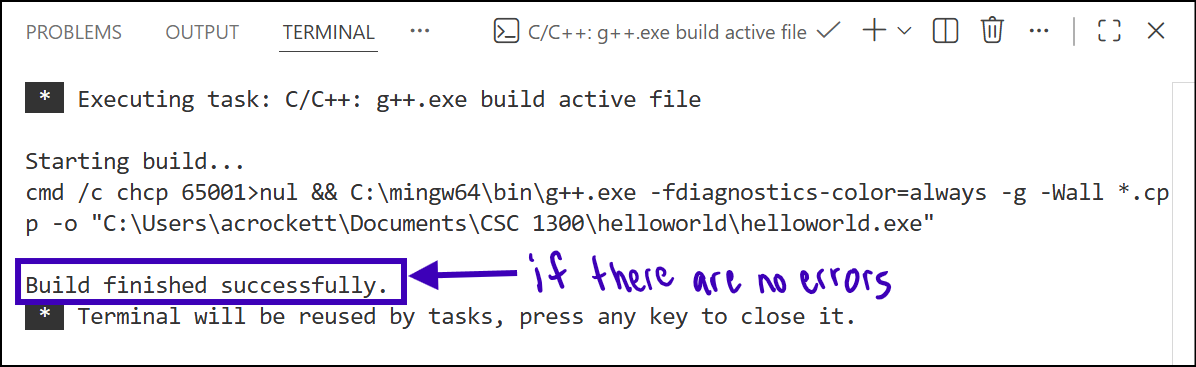
- If there are errors (or warnings), you will see the errors listed and then “Build finished with errors.“
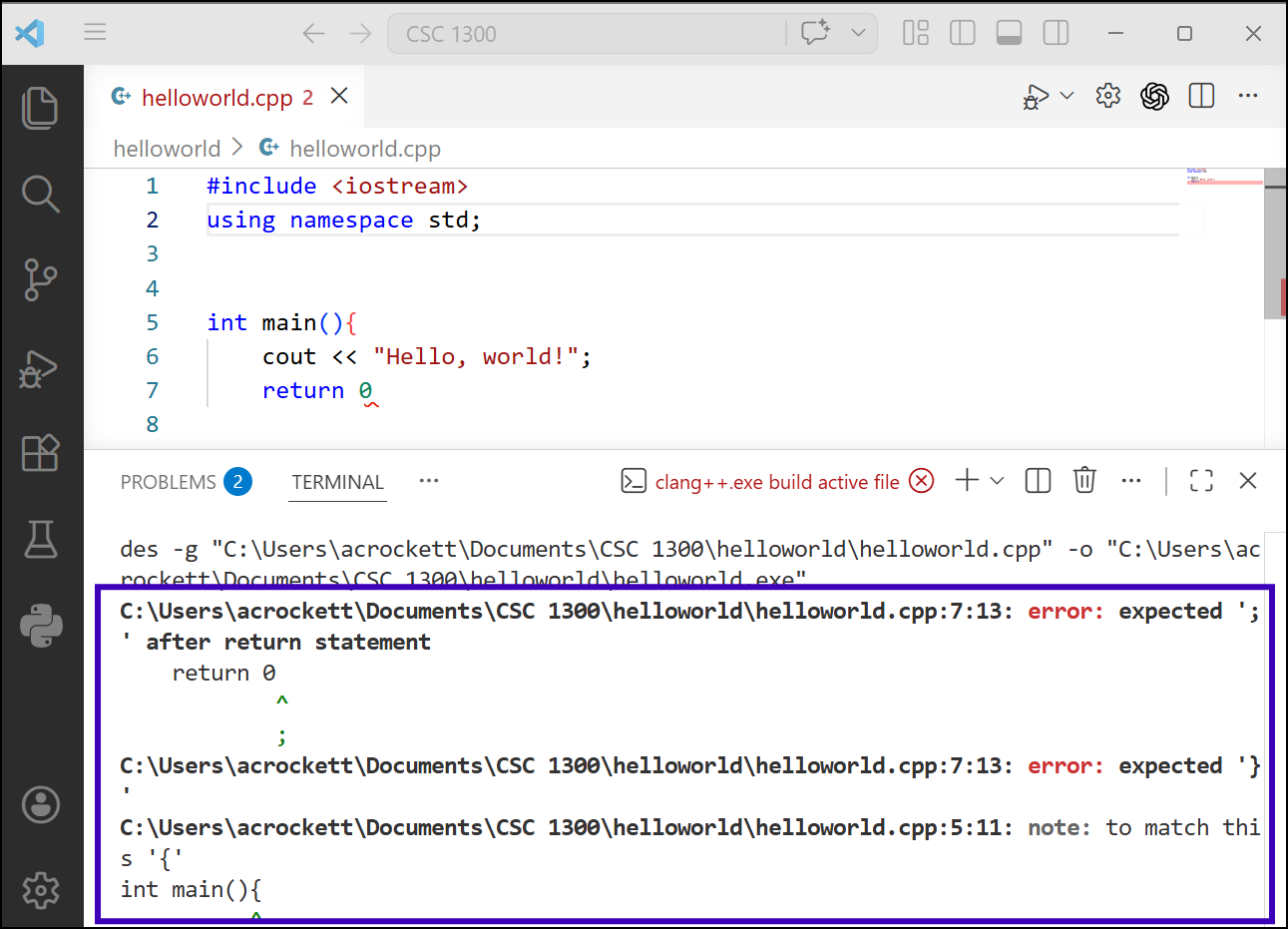
- Open a Terminal so you can run the program. Click on Terminal and then Run Terminal. If you do not see the Terminal link at the top, click on the three dots and then you will see Terminal.
- Then, you will have to navigate to the location of your helloworld folder by typing
cd helloworld. Then, you can run the program by typing./helloworld, which will run the helloworld.exe file.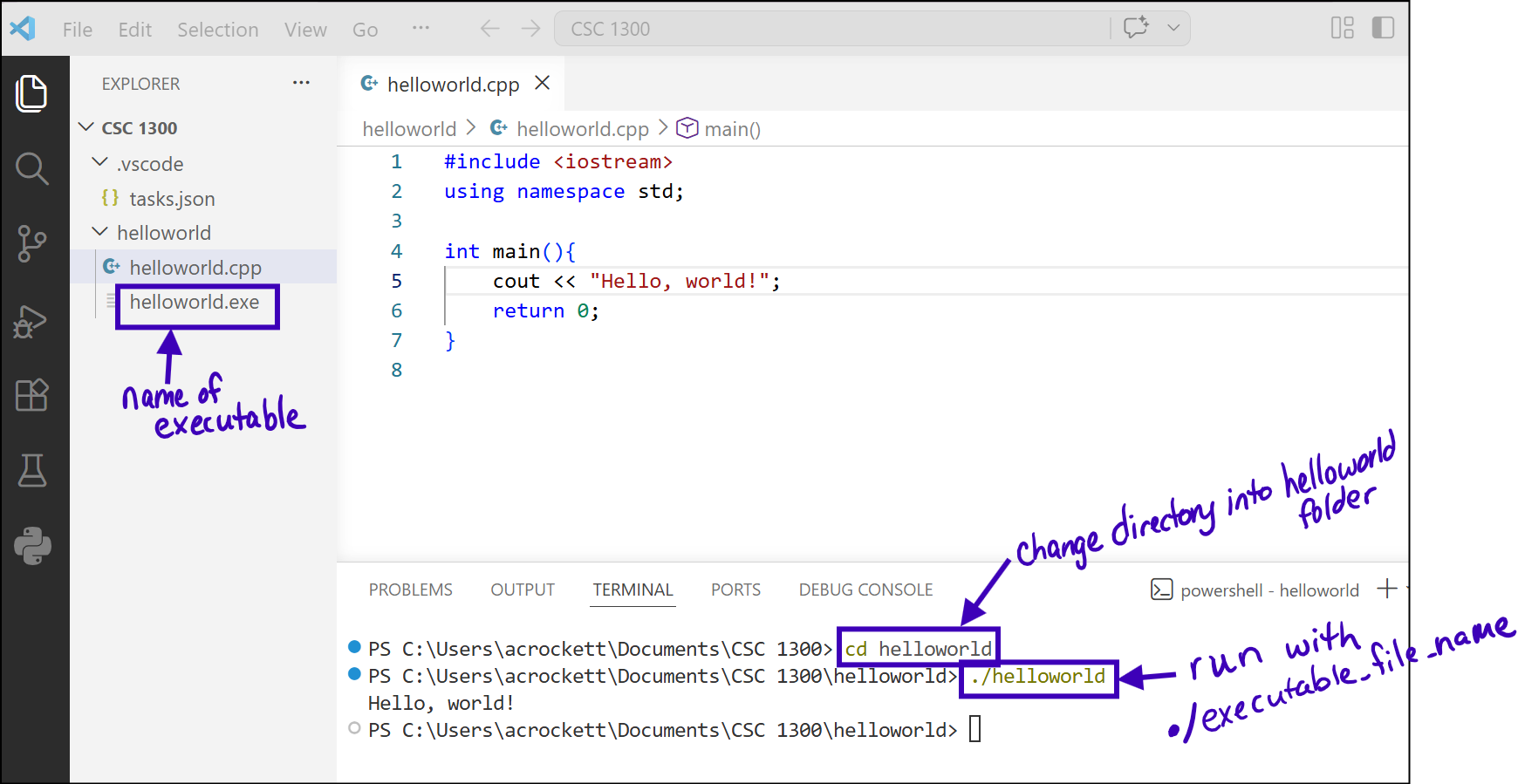
Explore IntelliSense
IntelliSense is an intelligent code-completion tool that includes several features such as list members, parameter information, quick information, and complete word. These features help you to learn more about the code you’re using, keep track of the parameters you’re typing, and add calls to properties and methods with just a few keystrokes.
The Red Squiggles
Go to the helloworld.cpp file used in an earlier example. Create a Dog struct in this file like the one below and purposefully leave off the semi-colon when creating the Dog age data member.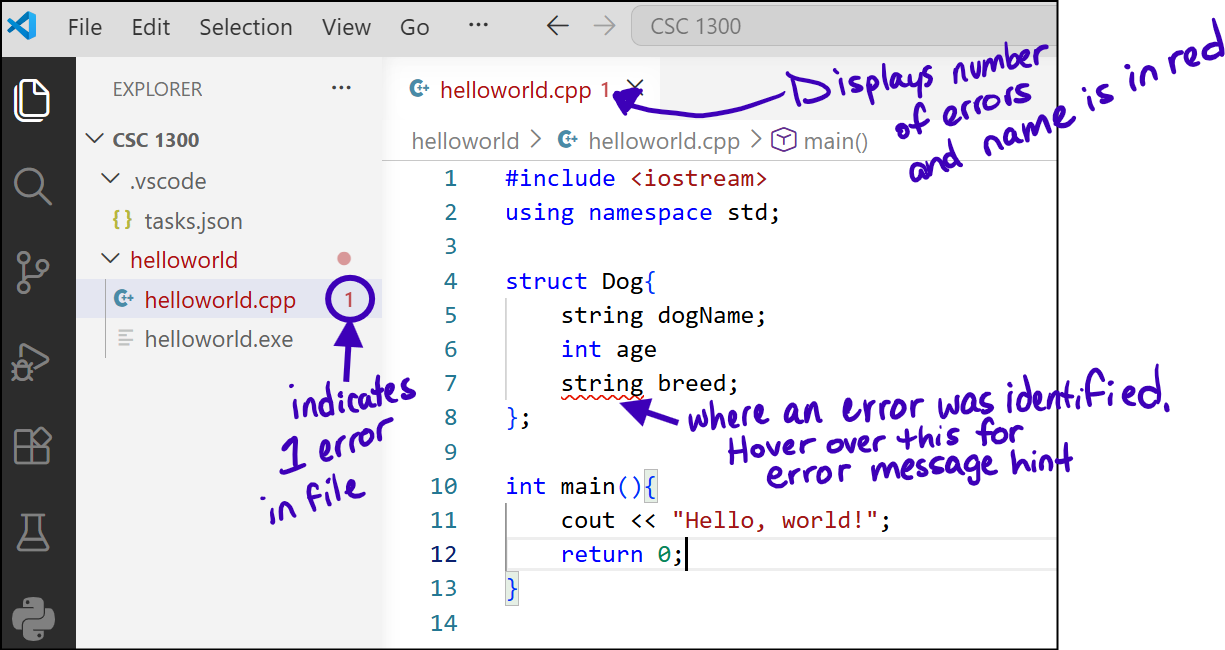
Do you see the red squiggly line? Hover over the line to see a mini-version of the compile error. Note that compiling the source file is still the best way to thoroughly test your code. Also, please know that sometimes the red squiggly lines can sometimes be buggy – they can appear when they shouldn’t and vice versa. So trust the red squiggles WITH CAUTION.
Auto-Adding Code
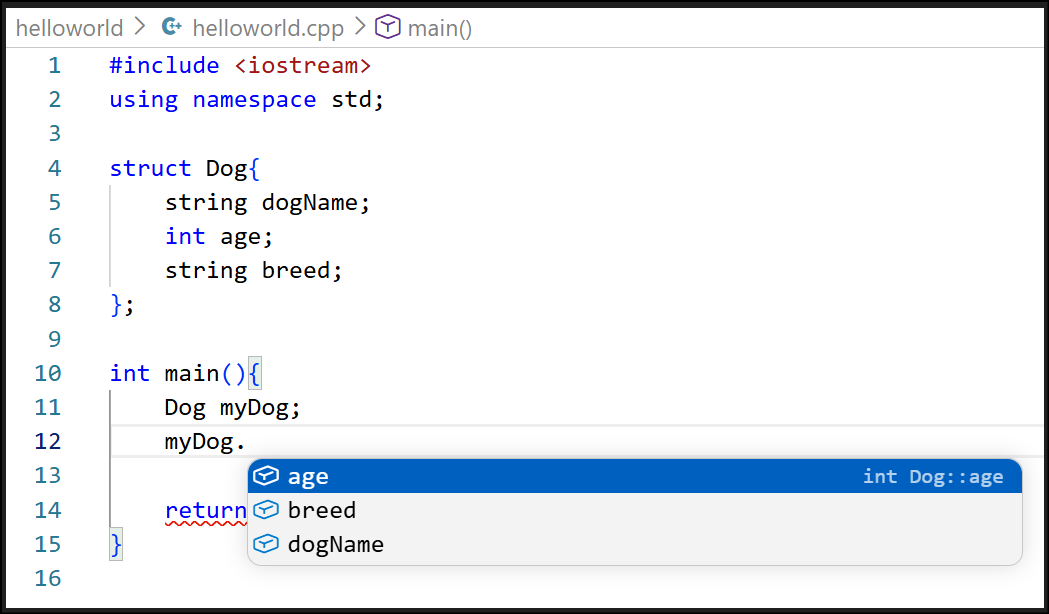
Another thing that IntelliSense does is auto-fill in some code like the data members of a structure after typing the dot operator. See example below.